Manage Preview Attributes
The Audience Attributes drawer controls which data columns appear in the Preview Users grid and sample CSV exports. By tailoring output attributes, marketing teams can inspect relevant identifiers, demographics, order metrics, and predictive scores to verify audience quality before launch.
1. Module Overview & Business Outcomes
The attributes subsystem fulfills three core functions:
- Targeted Verification: Select fields that directly prove or disprove qualification (e.g., viewing
Orders.purchaseCountwhen verifying repeat buyers). - Column Customization: Drag to reorder columns so primary identifiers (such as Customer ID or Email) appear first.
- Persistent Preferences: Selected column configurations are automatically stored in the user's browser
localStorage, ensuring personalized views persist across sessions.
2. Prerequisites, Entitlements & RBAC
- Returnable Field Requirement: Only catalog fields flagged with
returnable: truecan be selected as preview columns. - PII Clearance: Including direct contact fields (
Customer.email,Customer.mobile) requires appropriate privacy permissions in the active workspace.
3. Canonical Step-by-Step Walkthrough
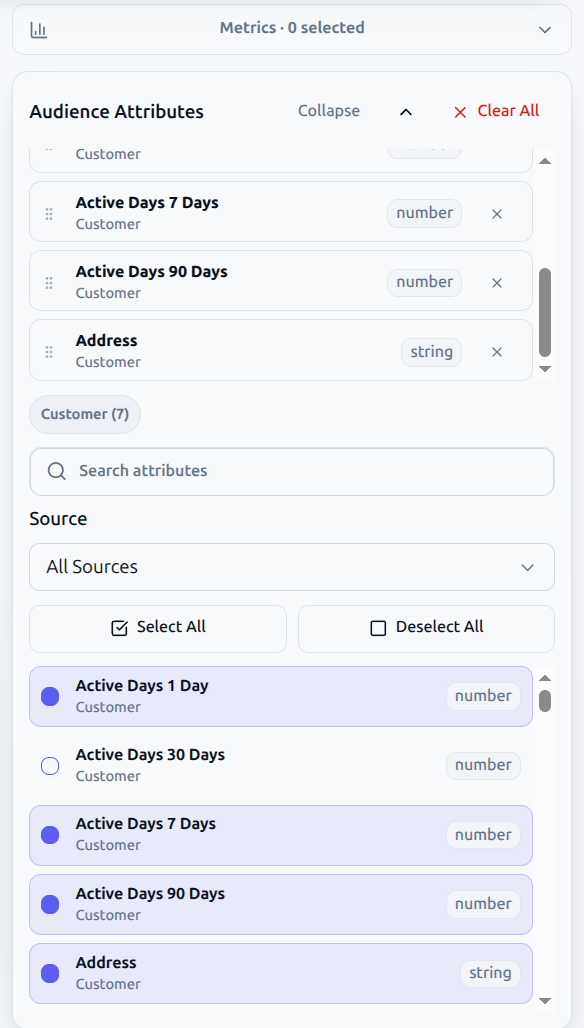
Step 1: Open the Attributes Panel
- On desktop, click the Audience Attributes tab on the right side of the workspace.
- On compact screens, select Customize Columns directly above the Preview Users table.
Step 2: Search and Filter Fields
- Use Search attributes to locate fields by display name or programmatic member path (e.g.,
email,revenue). - Use the Source dropdown to isolate fields from a specific entity (
Customer,Orders,Events,Predictions).
Step 3: Select or Bulk-Select Attributes
- Check individual attribute checkboxes to add them to the active preview selection.
- Click Select All Visible to add all attributes currently matching your search filter.
- Click Deselect All to uncheck currently filtered attributes.
- Click Clear All to reset the selected column set to zero.
Step 4: Reorder Columns for Optimal Review
- In the Selected Attributes top section, grab the drag handle (
::) beside any attribute. - Drag the item up or down to adjust its column position in the preview grid.
- Recommended column ordering:
- Primary Identifier (
Customer.idorCustomer.email) - Qualification Attributes (the exact fields used in your rule conditions)
- Secondary Context (e.g.,
Customer.country,Orders.lastOrderDate)
- Primary Identifier (
4. Technical Persistence Architecture
To avoid forcing users to re-select columns every time they revisit an audience, audience-builder leverages client-side persistence :
Storage Key = dmd_audience_attributes_{audienceId}_{userId}
- When you load an existing audience, the application reads your previously configured column set for that specific audience definition.
- If no saved column preferences exist, the system applies the workspace default baseline:
Customer.id,Customer.name,Customer.email, andCustomer.country. - When an estimate or preview is initiated, the selected attribute member paths are injected directly into
query.dimensions:{"query": {"dimensions": ["Customer.country", "Orders.purchaseCount", "Prediction.churnRisk"]}}
5. Operational Guardrails & Data Governance
- Minimizing Unnecessary PII: Do not select contact fields (email, mobile, address) unless strictly required for QA. For broad cohort verification, rely on pseudonymous customer IDs and categorical attributes.
- Returnable vs. Filter-Only Attributes: Certain high-volume raw event columns are designated as filter-only (
returnable: false) in the backend catalog. These attributes can be used in rule conditions but cannot be projected as output columns in preview tables.
6. Troubleshooting & Error Playbook
| Symptom | Probable Root Cause | Actionable Resolution |
|---|---|---|
| Preview table displays error "Select at least one attribute" | The attribute list was cleared or no fields are checked. | Open the Audience Attributes panel and select at least one column (e.g., Customer.id). |
| Desired field does not appear in attributes list | Field is marked returnable: false in the catalog, or search filter is too restrictive. | Clear the search filter; check if the field is a filter-only behavioral action. |
| Column order resets after page reload | Local storage write was blocked by browser privacy settings or private browsing mode. | Ensure browser allows local storage caching for the domain. |
| CSV export contains missing values for some columns | Selected attributes belong to an entity with no matching data for certain users (sparse data). | Normal behavior for optional customer traits or accounts without purchase history. |
7. Downstream Handoff & Next Steps
- Validate, Estimate, and Preview: Run an estimate and inspect rows using your configured attributes.
- Save, Export, and AI Generation: Export a sample CSV file containing your selected columns.
- Customer 360 Profiles: Deep-dive into individual profile traits and identity graphs.