Customer 360 Profile & Dynamic Workbenches
The Customer 360 Profile in DriveMetaData provides a consolidated operational dossier for individual customers. it unifies contact identifiers, commerce metrics, multi-touch attribution history, chronological journey timelines, and modular data workbenches into a single pane of glass.
1. Module Overview & Business Outcomes
The Customer 360 Profile enables customer success leads, account executives, and fraud analysts to:
- Inspect Complete Identity Graphs: View stitched identifiers (email, mobile, CRM ID, and
DMD UID) in one place. - Audit Chronological Customer Journeys: Trace every marketing touchpoint, site visit, cart update, and order completion in sequence.
- Verify Multi-Touch Attribution: Review which specific ad campaign, keyword, and publisher introduced and closed the customer.
- Explore Deep Event Telemetry: Use interactive Dynamic Tab Workbenches to filter transaction rows, analyze session heatmaps, and export filtered logs.
2. Prerequisites, Entitlements & RBAC
| Capability | Role Required | Permissions / Token |
|---|---|---|
| View Profile & Journey | Viewer, Editor, Admin | Basic workspace access. Contact data is masked by default. |
| Reveal Raw PII | Editor, Admin | User must have explicit pii_read permission assigned. |
| Export Event Data | Editor, Admin | Data export clearance enabled. |
3. Product Workspace Anatomy
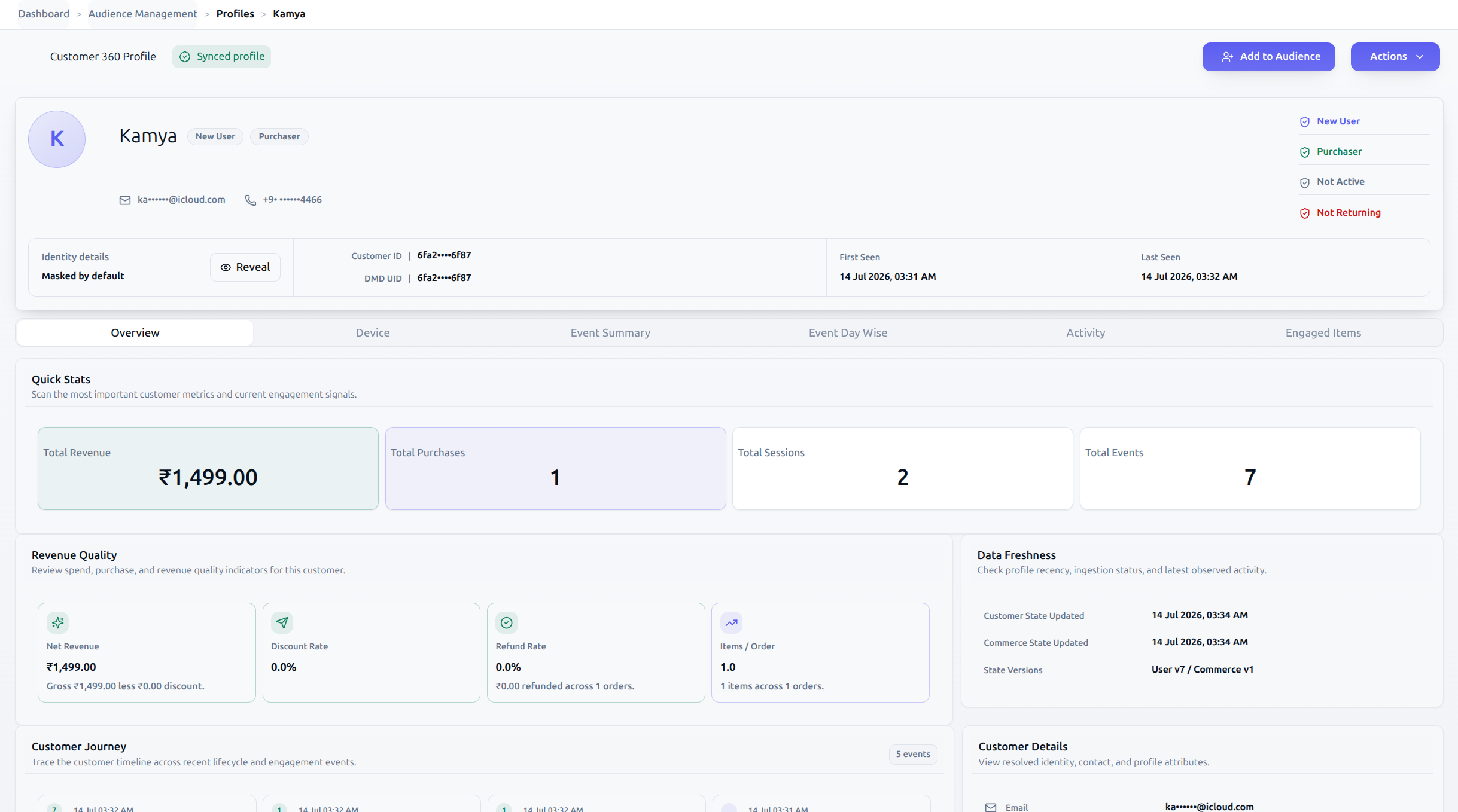
4. Canonical Step-by-Step Walkthrough
Step 1: Open a Customer 360 Profile
- From the Profiles Directory (
/profiles), click any customer name or ID. - Direct URL pattern:
/customer-360-profile/[customerId](e.g.,/customer-360-profile/usr-101).
Step 2: Manage PII Disclosure (Mask vs. Reveal)
- By default, sensitive fields are masked (
ar••••@gmail.com,••••••3210). - If your user account has
pii_readauthorization, click Reveal in the identity disclosure banner. - The email, phone number, Customer ID, and
DMD UIDwill unmask for the duration of your active browser session. - Click Hide to restore masking immediately.
Step 3: Copy the Canonical DMD UID
- Beside the
DMD UIDlabel in the header, click the Copy icon. - The canonical identifier is copied to your clipboard for use in Audience Builder filter rules or developer API calls.
Step 4: Review High-Level KPIs & Revenue Quality
- On the Overview tab, inspect the top metric cards:
- Lifetime Value (LTV): Cumulative net spend across all purchases.
- Total Orders: Historical transaction count.
- Average Order Value (AOV): Spend efficiency per checkout.
- Engagement Score: Behavioral activity index out of 100.
- In the Revenue Quality panel, review signals like purchase frequency and margin contribution.
- In the Data Freshness panel, confirm the last synchronization timestamp across your connected commerce platforms (e.g., Shopify, Magento).
Step 5: Trace the Customer Journey Timeline
- Scroll down to the Customer Journey section.
- Review chronological events marked by status chips (
ORDER,CAMPAIGN,PAGEVIEW,TOUCHPOINT). - Expand any journey item to inspect event metadata, such as order numbers, cart totals, or campaign creative IDs.
Step 6: Audit Multi-Touch Attribution
- In the Attribution Summary panel, compare the First Touch card against the Last Touch card:
- Source, Campaign, Medium, Content, Term, and Publisher ID.
- In the Touchpoints Panel, review the full touchpoint history.
- Check the Credit Badges to observe how fractional attribution models (Linear vs. Position-Based) assign revenue credit across interactions.
- Verify the Deterministic vs. Probabilistic badge on each touchpoint.
Step 7: Explore Granular Dynamic Tab Workbenches
Beyond the Overview tab, switch to specialized dynamic entity tabs:
- Transactions Tab:
- View historical orders and order item details.
- Use the Date Range Bar to isolate specific purchasing quarters.
- Events Tab:
- Inspect the raw digital telemetry stream.
- Click Column Filter to filter events by event name (e.g.,
add_to_cart).
- Exporting Workbench Data:
- In any dynamic tab, click Export to CSV to download the filtered table records.
5. Operational Guardrails & Data Governance
- Zero-Persistence PII Reveal: The PII reveal state is strictly held in React component memory. Refreshing the browser, closing the tab, or switching workspaces automatically revokes the reveal state, restoring default masking.
- Audit Trail: Every time an operator clicks "Reveal", an immutable audit record is submitted to the tenant's security logs containing the operator's user ID, client IP, timestamp, and accessed
customerId. - Dynamic Tab Query Limit: Dynamic event queries are capped at a maximum of 500 rows per query to maintain optimal browser rendering performance.
6. Troubleshooting & Error Playbook
| Symptom | Probable Root Cause | Actionable Resolution |
|---|---|---|
| Error: "Customer profile not found" | Non-existent customer ID entered in route, or profile was merged under another DMD UID. | Search for the customer in the Profiles Directory to retrieve their active canonical identifier. |
| "Reveal" PII toggle is disabled or missing | User account lacks pii_read administrative clearance. | Contact your workspace administrator to grant PII read permission. |
| Journey timeline shows gaps in activity | Tracking SDK was temporarily disconnected on the client app during that timeframe. | Verify data source sync status in the Data Freshness panel. |
| Touchpoints panel shows "No touchpoint records found" | Customer has only visited organically without query parameters or ad tracking tags. | Normal behavior for direct, untagged traffic. |
7. Downstream Handoff & Next Steps
- Profiles Directory Guide: Return to the full customer registry to perform cohort-wide batch actions.
- Build Audience Rules: Use discovered profile attributes to build reusable segmentation criteria.
- Channel Performance Guide: Investigate the acquisition campaigns that drove this customer's initial visit.