Channel Performance & Ad Attribution Grid
The Channel Performance module in DriveMetaData delivers an enterprise-grade reporting grid that unifies ad spend, impressions, clicks, conversions, and attributed revenue across paid and organic acquisition channels (Google Ads, Meta Ads, TikTok Ads, Email, and Direct).
1. Module Overview & Business Outcomes
Channel Performance solves the multi-channel attribution challenge for marketing leaders and growth analysts:
- True Blended & Attributed ROI: Compare ad spend directly against verified customer conversions and revenue recorded in your backend data warehouse.
- Granular Unit Economics: Monitor Cost Per Acquisition (CPA), Return on Ad Spend (ROAS), and Click-Through Rate (CTR) at the channel, campaign, country, and device levels.
- Period-over-Period Performance Deltas: Instantly visualize whether spend efficiency is trending up or down compared to the prior timeframe.
- Tailored Executive Views: Reorder columns, pin essential dimensions, and save personalized view presets for daily team standups or board presentations.
2. Prerequisites, Entitlements & RBAC
| Requirement | Description |
|---|---|
| Ad Account Connections | Google Ads, Meta Ads Manager, or TikTok For Business accounts must be connected via DMD Data Integrations. |
| Financial Permission | Viewing ad spend, CPA, and ROAS requires financial metric visibility permissions (finance_read or Admin). |
| Workspace Timezone | Daily reporting partitions align automatically with your active workspace timezone. |
3. Product Workspace Anatomy
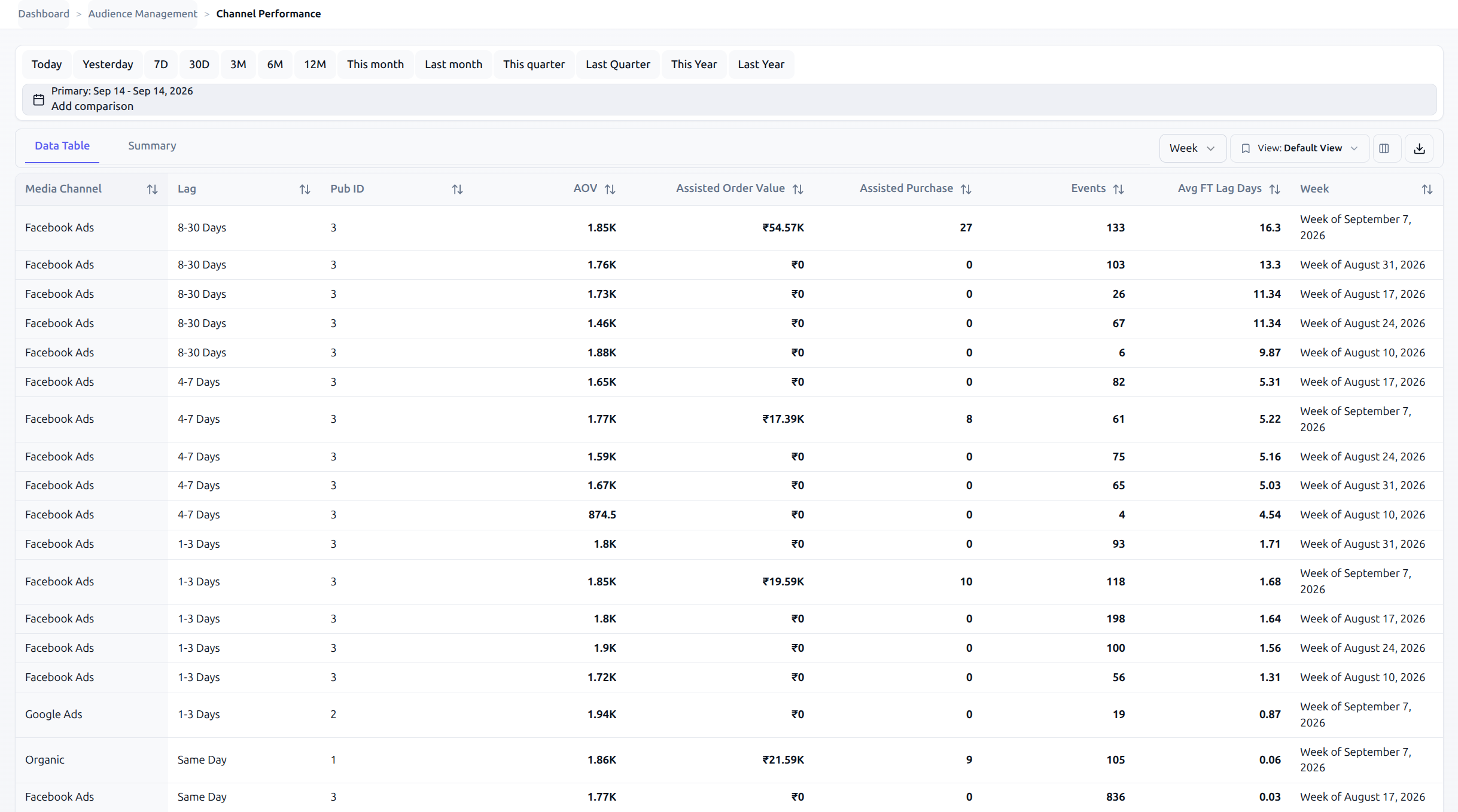
- Header Controls: Date picker with comparison options, time granularity selector, and dimensional dropdown filters.
- Table Toolbar: Saved view selector, column manager launcher, and CSV export action.
- Data Grid: Enterprise data table supporting column pinning, sorting, and inline directional trend badges.
4. Canonical Step-by-Step Walkthrough
Step 1: Navigate to Channel Performance
- In the left-hand workspace navigation menu, click Channel Performance.
- Direct route:
/channel-performace.
Step 2: Set the Evaluation Date Range & Comparison Period
- Click the Date Range Filter in the top control bar.
- Select an active timeframe (e.g.,
Last 30 days,This month,Last Quarter). - Toggle Compare to Previous Period on. The table will compute relative percentage deltas for every metric.
Step 3: Choose Time Granularity
Select the rollup frequency from the Granularity dropdown:
None: Aggregates the entire date range into a single summary row per channel/campaign.Day: Breaks performance down into individual daily rows (ideal for spotting volatility).Week/Month/Quarter: Aggregates trends for executive reporting.
Step 4: Filter by Acquisition Dimensions
Use the top filter dropdowns to narrow the dataset:
- Channel: Focus on a single network (e.g., compare Google Search vs. Google PMax vs. Meta).
- Country: Isolate regional performance (e.g., India vs. UAE vs. US).
- Device: Compare mobile vs. desktop conversion rates.
Step 5: Customize Columns with the Column Manager
- Click Customize Columns in the table toolbar.
- In the modal drawer, check or uncheck available dimensions and metrics.
- Drag to reorder columns so primary KPIs appear first.
- Click Apply Layout.
Step 6: Pin Important Columns
To keep primary identifying dimensions visible while scrolling horizontally across dozens of metrics:
- Hover over the header of any column (e.g.,
ChannelorCampaign). - Click the Pin (📌) icon.
- The column locks to the left boundary of the grid. By default,
channelandcampaignare pinned.
Step 7: Save and Switch Table Views
- Once your columns and filters are configured, click Table View ▾ in the toolbar.
- Select Save Current View as... and enter a name (e.g., "Weekly Paid Acquisition QA").
- Switch between your saved view presets at any time. Preferences are saved to your user profile in PostgreSQL.
Step 8: Export Data to CSV
- Click Export CSV in the toolbar to download the active filtered grid slice for offline modeling or executive spreadsheets.
5. Operational Guardrails & Data Governance
- Workspace Timezone Lock: All daily partitions adhere strictly to workspace timezone. If you switch workspaces, the daily cutoffs automatically recalculate to prevent timezone mismatch errors.
- PII Exclusion Policy: The grid is strictly isolated to aggregated attribution dimensions. Columns containing direct personal identifiers are automatically excluded by the query parser (
!member.pii && !member.sensitive). - Currency Normalization: Ad spend in non-reporting currencies (e.g., USD or EUR) is dynamically normalized into tenant reporting currency (e.g., INR) using ClickHouse daily exchange tables.
6. Troubleshooting & Error Playbook
| Symptom | Probable Root Cause | Actionable Resolution |
|---|---|---|
| Ad spend displays ₹0 across all channels | Ad connector authentication token expired or data sync has not completed for today. | Check Data Source connections; verify ad platform API credentials. |
| CPA trend shows upward red arrow (▲) | Acquisition cost per paying customer increased compared to the previous period. | Review underperforming ad creative or tighten audience targeting in Audience Builder. |
| Column layout resets after browser refresh | UI preference save mutation failed due to a network interruption. | Re-save the table view preset using Save Current View. |
| Data table shows "No performance data found" | The selected date range precedes the initial ad sync, or filters are mutually exclusive. | Expand date range to Last 90 days and set Channel/Country filters to All. |
7. Downstream Handoff & Next Steps
- Audience Insights Guide: Drill down into specific customer cohorts that converted through your top channels.
- Build Audience Rules: Create high-intent retargeting segments using top-performing touchpoints (
touchpoint.source = Google). - Funnel Reports: Measure downstream product conversion funnels for specific campaign traffic.
- Channel Performance API Reference: Review the underlying
AttributionAdsPerformanceDailyquery contracts.