Create Mobile Push Notification Templates
DriveMetaData (DMD) allows mobile marketing teams to build rich, platform-aware mobile push notification templates for iOS (APNs) and Android (FCM).
Before you start
Confirm the following prerequisites before building mobile push templates:
- Firebase Cloud Messaging (FCM) or Apple Push Notification service (APNs) credentials are configured in workspace settings.
- The DMD Mobile SDK is integrated into your Android and iOS apps.
- Custom deep link schemes (e.g.,
myapp://product/123or Universal Linkshttps://myapp.com/product/123) are registered in your mobile app codebase.
Creation Workflow
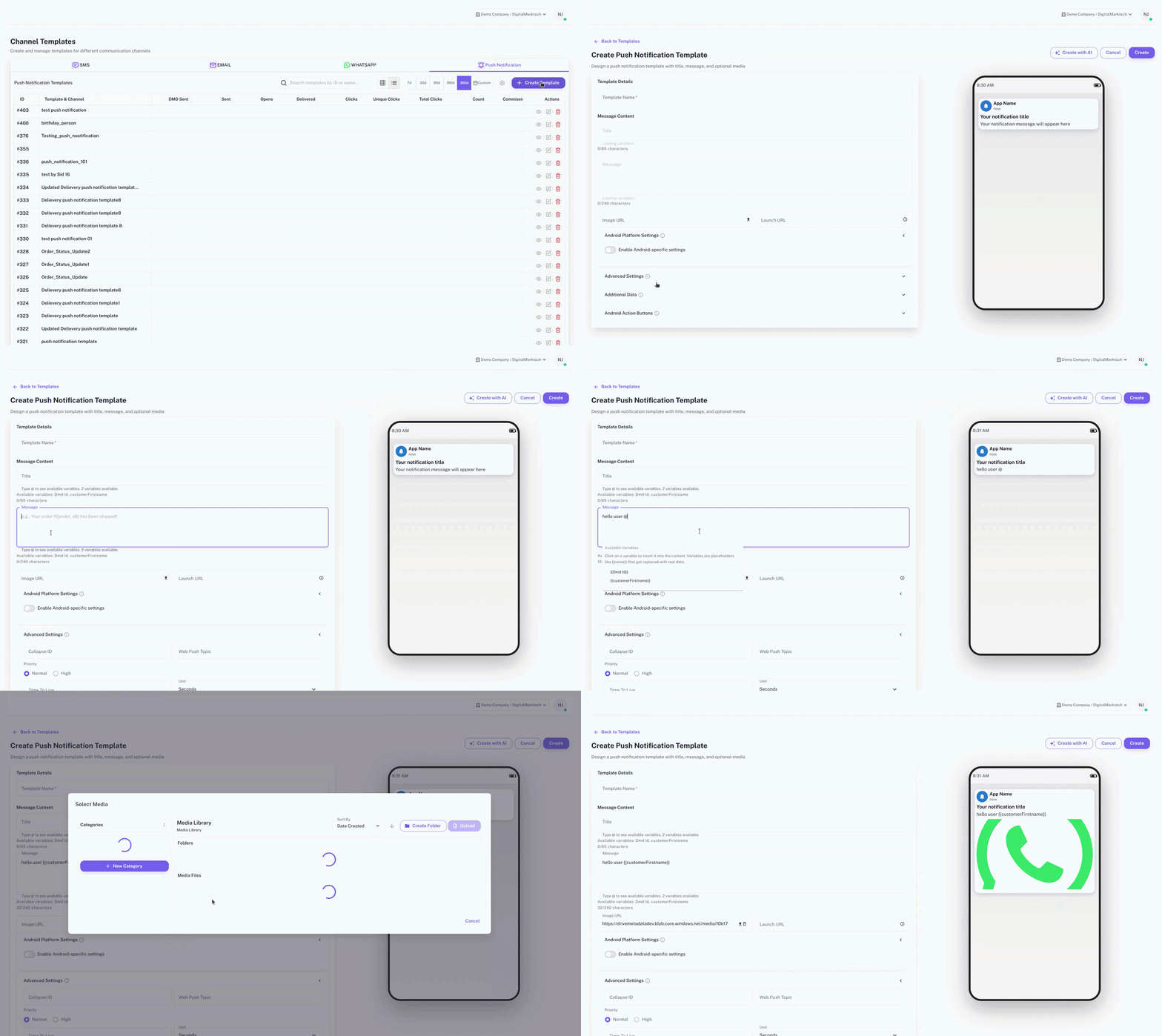
- Navigate to
templatesand select the Push Notification tab. - Click Create Push Template to open the editor at
/templates/push-notification/create. - Enter template metadata:
- Template Name: Internal reference identifier.
- Target Platforms: Toggle Android, iOS, or Both.
Message Copy and Character Limits
- Notification Title: Keep title concise and engaging (Maximum 65 characters).
- Notification Body: Main message copy (Maximum 240 characters).
- Dynamic Variables: Insert personalization attributes such as
{{first_name}}or{{cart_value}}.
Rich Media Attachments
Add visual banners to increase tap-through rates:
- Image URL: Enter a public HTTPS URL or select an image from the Media Library.
- Android: Displayed as an expanded BigPictureStyle notification.
- iOS: Displayed as a rich notification attachment (iOS 10+ UNNotificationAttachment).
Platform-Specific Settings
Android Configuration
- Android Category: Select from system categories (
Promo,Reminder,Message,Event,Social,Service,System,None). - Channel ID: Specify the target Android Notification Channel ID registered in your app (e.g.,
promotional_channel). Required for Android 8.0 (API level 26) and above.
iOS Configuration
- Sound: Play default system sound or custom bundled sound file (e.g.,
chime.caf). - Badge Count: Set specific badge count increment or reset behavior.
- Category ID: Specify the iOS Notification Action Category ID for custom action buttons.
Deep Links and Custom Key-Value Pairs
Deep Links
Direct users to specific screens inside your mobile app upon tapping the notification:
- Deep Link URL: Enter custom URL scheme or HTTPS Universal Link (e.g.,
app://checkout?promo=SUMMER2026).
Custom Key-Value Pairs (JSON Data Payload)
Pass arbitrary key-value pairs to your app developers and analytics handlers:
{
  "screen_target": "product_details",
  "product_id": "84920",
  "campaign_id": "cmp_9201"
}
Preview and Testing
- Live Device Preview: Use the interactive preview toggle on the right panel to switch between Android Notification Shade and iOS Lock Screen views.
- Send Test Push: Dispatch a test notification payload to a registered test device token.
QA Checklist
- Notification title is under 65 characters to prevent truncation.
- Notification body is under 240 characters.
- Deep link URI scheme matches the registered URI handler in the app manifest.
- Image attachment URL uses HTTPS protocol and correct aspect ratio (2:1 recommended).
- Custom JSON key-value pairs are valid JSON objects.
Common Issues and Troubleshooting
| Issue | Cause | Fix |
|---|---|---|
| Notification not delivered on Android 8+ | Invalid or missing Android Channel ID | Specify exact Channel ID configured in Android app code |
| Rich image missing on iOS | Image URL non-HTTPS or file size > 10MB | Use HTTPS URL and keep image file size below 5MB |
| Deep link opens app root screen instead of target page | Deep link URL handler not implemented in app | Verify URI router in mobile app codebase |