Create and Manage WhatsApp Templates
The WhatsApp template editor in DriveMetaData (DMD) allows teams to build Meta-compliant WhatsApp messaging templates. You can construct both Standard Templates (single message layout with media, body text, and interactive buttons) and Carousel Templates (multi-card horizontally scrollable templates).
Before you start
Confirm the following prerequisites before building WhatsApp templates:
- Your WhatsApp Business Account (WABA) is connected and verified in DMD workspace settings.
- Required media assets (images, MP4 videos, PDFs) are uploaded to the Media Library or accessible via public HTTPS URLs.
- You have identified the target WhatsApp category:
MARKETING,UTILITY, orAUTHENTICATION. - You understand Meta's strict variable formatting rules (
{{1}},{{2}}).
Standard WhatsApp Templates
Standard templates consist of a single header, message body, optional footer, and up to 10 interactive action buttons.
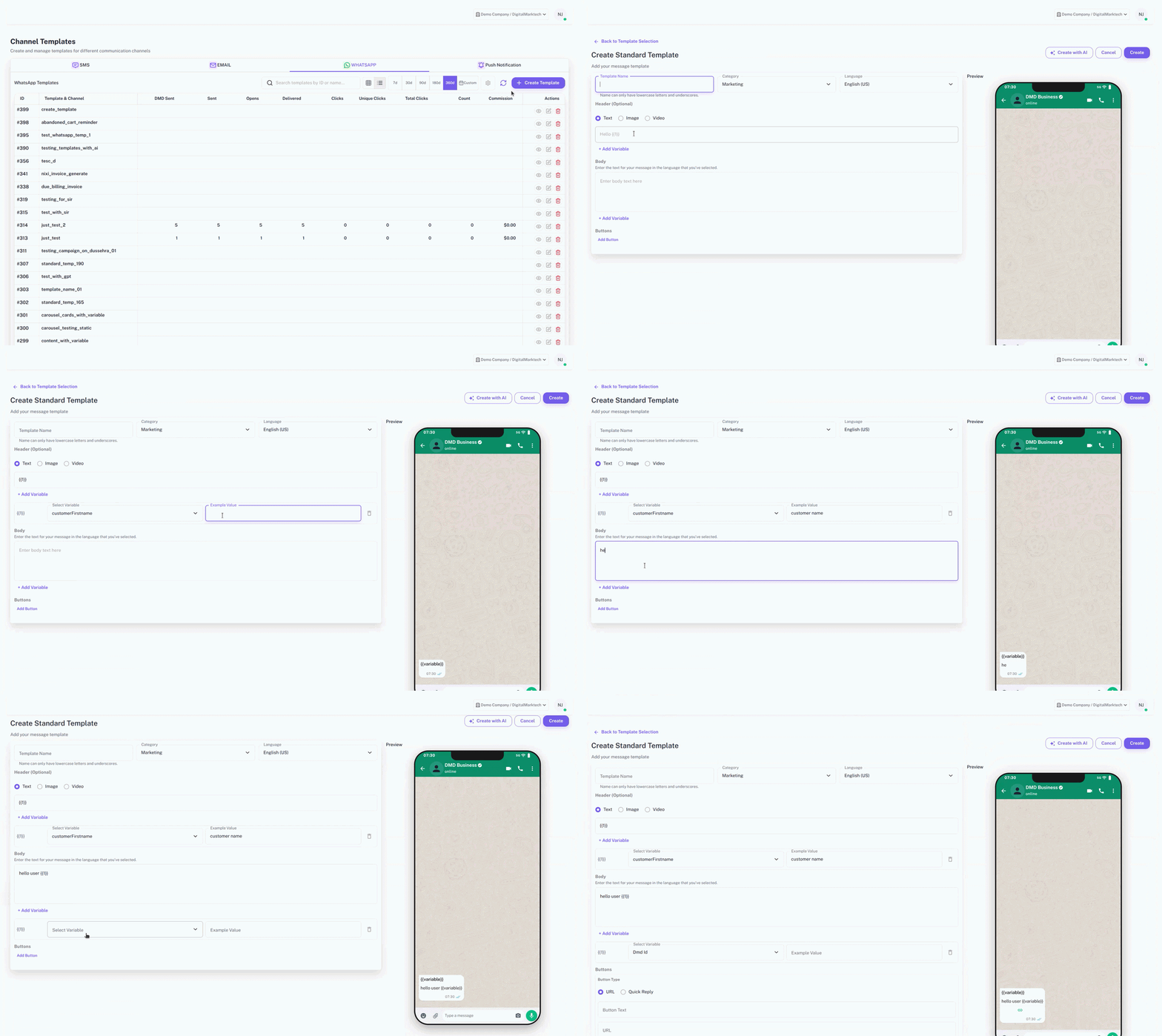
1. Basic Information
- Template Name: Lowercase letters, numbers, and underscores only (e.g.,
black_friday_promo_2026). - Category: Select
MARKETING,UTILITY, orAUTHENTICATION. - Language: Select the target locale (e.g.,
en_US,es_ES).
2. Header Configuration
Select one of four header options:
- None: Message starts directly with body copy.
- Text: Static text header or dynamic text containing a single variable placeholder
{{1}}. - Image: Attach a JPG/PNG header image (max 5 MB).
- Video: Attach an MP4 video (max 16 MB).
3. Body Copy and Variables
Enter your message body text (up to 1,024 characters). Use double curly braces for positional dynamic variables:
Hi {{1}}, thank you for joining {{2}}! Your unique discount code is {{3}}.
Meta Variable Formatting Rules
- Variables must be sequential numbers starting from 1:
{{1}},{{2}},{{3}}. - Variables cannot be placed at the very beginning or very end of the message body.
- Variables cannot be adjacent (e.g.,
{{1}}{{2}}is invalid).
4. Interactive Buttons
Add interactive buttons to increase engagement:
- Quick Reply: Pre-set response text that users can tap to reply instantly (up to 3 buttons).
- Call to Action (CTA):
- Visit Website: Direct URL button. Can be static or dynamic (e.g.,
https://example.com/orders/{{1}}). - Call Phone Number: Direct dial button with country code and phone number.
- Visit Website: Direct URL button. Can be static or dynamic (e.g.,
Carousel WhatsApp Templates
Carousel templates display up to 10 horizontally scrollable cards, giving recipients an interactive catalog experience.
Card Structure
Each card in a WhatsApp Carousel template contains:
- Header Image or Video: Visual media asset specific to the card item.
- Body Text: Card description copy supporting dynamic variables.
- Card Buttons: Up to 2 buttons per card (Quick Reply or Visit Website URL).
Steps to Build a Carousel Template
- Navigate to
/templates/whatsapp/create?type=carousel. - Enter basic metadata (Template Name, Language, Category).
- Click Add Card to add cards (minimum 2 cards, maximum 10 cards).
- For each card:
- Select header media from the Media Library or upload a file.
- Enter card body copy.
- Configure card button labels and dynamic URL paths.
- Review the live interactive carousel preview on the right panel.
- Click Submit Template for Approval.
Variable Mapping and Fallback Values
Meta requires sample fallback values for every dynamic variable before approving a template.
In the Variable Mapping section:
- Map each variable placeholder (e.g.,
{{1}}) to a DMD customer attribute (e.g.,first_name). - Provide a realistic Meta Example Value (e.g.,
Alex).
Placeholder: {{1}}  --->  DMD Attribute: first_name   --->  Meta Example: Alex
Placeholder: {{2}}  --->  DMD Attribute: company_name  --->  Meta Example: DriveMetaData
Meta Sync and Approval Lifecycle
All WhatsApp templates submitted through DMD are automatically sent to Meta's automated template review system.
[Draft]  --->  [Pending Review]  --->  [Approved] (Ready for Campaigns)
                                  --->  [Rejected] (Fix & Resubmit)
| Status | Meaning | Action Needed |
|---|---|---|
| Draft | Saved locally in DMD, not submitted to Meta | Complete form and click Submit |
| Pending | Under review by Meta automated safety filters | Usually completes in 1-15 minutes (can take up to 24 hours) |
| Approved | Approved by Meta | Template can now be selected in Campaign Module |
| Rejected | Flagged by Meta for policy or syntax violation | Review rejection reason code, fix copy/variables, and resubmit |
QA Checklist
- Template name contains only lowercase letters, numbers, and underscores.
- Variables follow strict sequential numbering (
{{1}},{{2}}). - Realistic sample values are provided in the Meta Example Map for all placeholders.
- Header media handle is properly uploaded and preview renders cleanly.
- Dynamic CTA button URLs contain exactly one variable suffix (e.g.,
https://domain.com/item/{{1}}).
Common Issues and Troubleshooting
| Issue | Cause | Fix |
|---|---|---|
| Meta Rejection: Invalid Format | Non-sequential variables (e.g., {{1}} and {{3}} without {{2}}) | Renumber placeholders sequentially |
| Meta Rejection: Promotional Content in Utility Category | Selected category UTILITY but copy contains discount offer | Change template category to MARKETING |
| Media Upload Error | File size exceeds Meta limits (Image > 5MB, Video > 16MB) | Compress asset file size and retry |
| Dynamic URL Button Fails | Domain host omitted from button URL | Include full protocol prefix https:// in base URL |