Funnel Report Guide
The DriveMetaData (DMD) Funnel Report empowers growth marketers, product managers, and analytics engineers to visualize how customers navigate defined sequences of actions—identifying critical conversion bottlenecks, quantifying step latency, and comparing journey efficiency across acquisition channels.
1. Overview & Business Value
In modern omnichannel marketing, customer conversion rarely happens in a single touchpoint. Customers discover brands via ads, explore product catalog pages, initiate checkout, and eventually complete a transaction.
The Funnel Report transforms raw clickstream and transactional events into intuitive visual progression bars:
- Pinpoint Journey Drop-Offs: Identify precisely which transition experiences the highest customer loss (e.g., whether users drop between Cart View and Checkout Started, or Checkout Started and Payment Complete).
- Quantify Conversion Velocity: Measure the median, p75, and p90 time elapsed between steps to optimize nurture timing and cart-recovery automation.
- Segment & Channel Comparison: Contrast funnel efficiency between paid search, social campaigns, organic traffic, and custom audience segments.
- Track Cohort Momentum: Analyze conversion trends over time using the trend chart to evaluate the impact of product releases and marketing promotions.
2. Architecture & Data Flow
When a user defines and runs a funnel report, the query is processed through ClickHouse windowed sequence matching algorithms.
- Client Configuration: Marketers configure steps, filters, lookback windows, and sequence strictness.
- Execution Routing: The request is dispatched.
- Sequence Matching: ClickHouse evaluates chronological events grouped by
dmd_uidwithin the specified conversion window. - Interactive Visualization: Results populate the Funnel Chart bar visualization, the Funnel Steps Table.
3. Step-by-Step Execution Guide
Step 1: Navigate to Funnel Reports
From the main navigation bar, select Reports $\rightarrow$ Funnels (or navigate to /funnel).
- The Funnel Directory displays all saved reports with their name, author, last run timestamp, and conversion rate.
- Click Create Funnel in the top-right corner to launch the full-screen builder.
Step 2: Define Funnel Name & Metadata
- Enter a clear, descriptive Name (e.g.,
E-Commerce Checkout Funnel - Q3). - Provide an optional Description noting the target cohort and business objective.
Step 3: Configure Journey Steps
Click + Add Step to specify each milestone in the customer conversion path:
- Step Name: Enter a human-readable label (e.g.,
1. Landing Page View). - Event Selection: Choose the tracking event from the event taxonomy dropdown (e.g.,
page_view,product_view,cart_add,checkout_start,purchase_complete). - Step Filters (Optional): Refine the step by adding attribute constraints:
- Example:
page_type EQUALS checkoutorchannel IN (Google Ads, Meta Ads). - Multiple filters within a step use logical
ANDevaluation.
- Example:
[!TIP] Keep the initial funnel between 3 to 5 clear milestones. Overly granular funnels (e.g., 15 micro-actions) introduce noise and dilute drop-off clarity.
Step 4: Configure Conversion Window & Sequencing
In the right-hand Funnel Settings inspector panel:
- Conversion Window: Define the maximum allowable duration between Step 1 and the final step.
- Presets:
1 Hour,24 Hours,7 Days,14 Days,30 Days, orCustom. - Journeys exceeding this window are counted as drop-offs even if the user eventually converts.
- Presets:
- Sequence Mode:
- Loose (Recommended): Permits intermediate events between steps. Customers can read blog posts or search for coupon codes without breaking funnel progression.
- Strict Sequential: Mandates that no unconfigured customer action occurs between steps.
Step 5: Run the Funnel Report
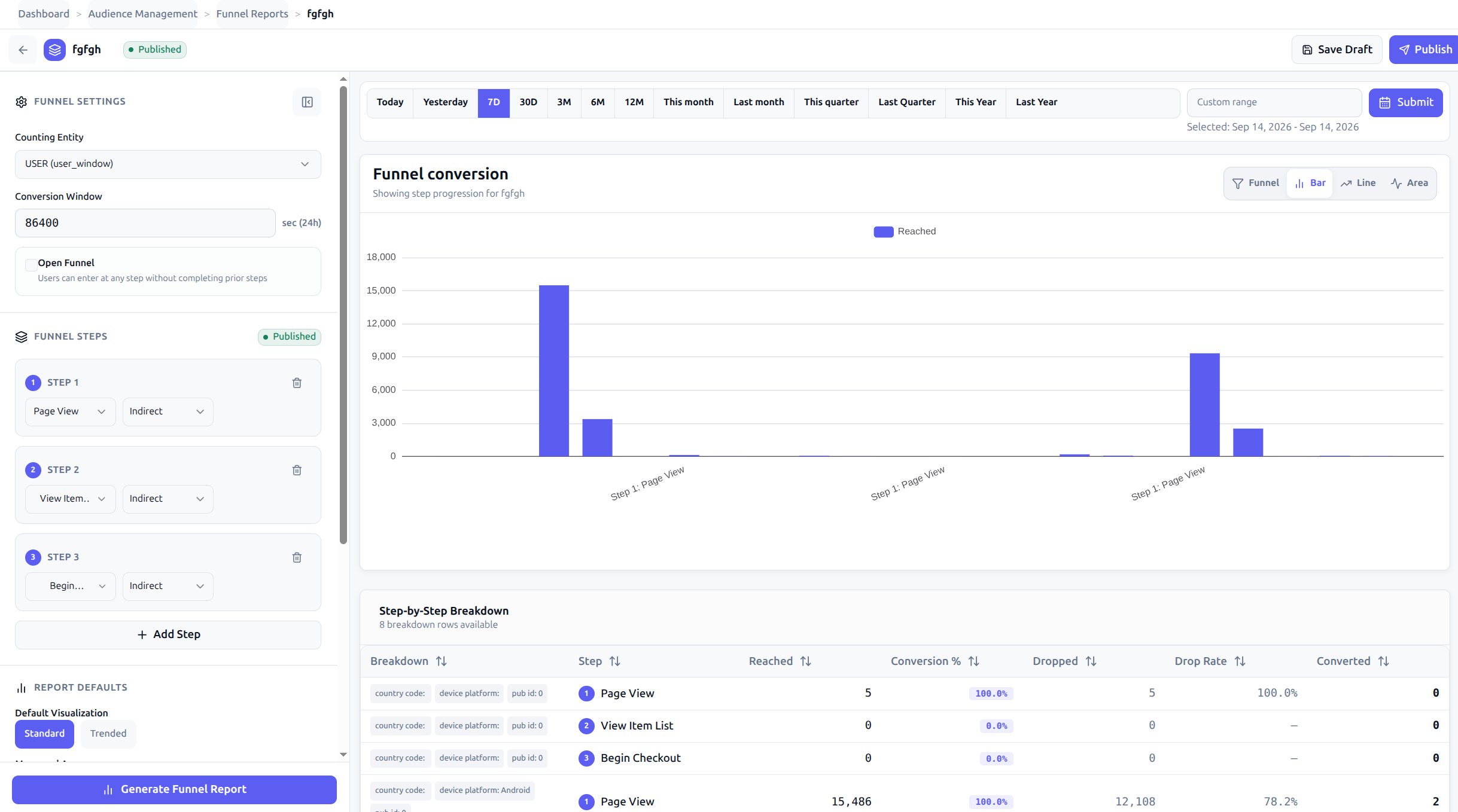
Click the Run Funnel button. Within seconds, the report generates three synchronized analytical views:
1. The Funnel Progression Chart
- Vertical or horizontal bar chart displaying entered user volume for each step.
- Drop-off callouts highlighting the percentage and count of users lost between each consecutive milestone.
2. The Conversion & Latency Table
A detailed grid breaking down each transition:
- Entered Users: Total volume eligible at this step.
- Converted Users: Volume successfully transitioning to the next step.
- Step CVR %: Transition efficiency from previous step.
- Overall CVR %: Cumulative efficiency from Step 1.
- Median Time to Convert: Elapsed time required for the middle 50th percentile of users to advance.
3. The Trend Over Time Chart
- Historical cohort analysis showing how conversion efficiency fluctuates daily or weekly.
- Essential for correlating marketing campaign launches or website UX updates with conversion rate improvements.
Step 6: Save & Share
- Click Save to persist the funnel definition.
- Saved funnels can be bookmarked, scheduled for automated reporting, or shared across marketing teams.
4. Edge Cases, Limits & Failure Modes
| Scenario | System Behavior | Mitigation Strategy |
|---|---|---|
| Out-of-Order Event Timestamps | Events sharing the exact same timestamp millisecond may be evaluated non-deterministically. | Ensure client SDKs flush events with sequential sequence numbers or distinct millisecond timestamps. |
| Window Exceeded | User completes Step 3 on day 31 when the window is 30 days. | User is categorized as dropped off. Increase the conversion window if your sales cycle is long. |
| Strict Mode False Drop-Offs | Background telemetry events (e.g., heartbeat, token_refresh) interrupt strict sequence steps. | Use Loose Mode unless testing an isolated checkout modal with no concurrent background actions. |
| ClickHouse Query Timeout | Funnels querying unbounded date ranges across billions of rows may exceed the 30-second gateway timeout. | Narrow the date filter to 30 or 90 days, or apply an initial channel/country filter. |
5. Enterprise Best Practices & Troubleshooting
Diagnostic Troubleshooting Matrix
| Symptom | Probable Cause | Resolution |
|---|---|---|
| 0% Conversion at Step 2 | Event name typo or attribute filter mismatch on Step 2. | Inspect raw event telemetry in the Customer 360 Event Stream to verify the exact string name of the event. |
| Step 2 volume exceeds Step 1 | This cannot occur in a sequential funnel; indicates user entered via an alternate entry point. | Ensure Step 1 represents the true universal entry point, or apply a segment filter. |
| Drop-off is 99% across all steps | The conversion window is set too short (e.g., 1 hour instead of 7 days). | Adjust conversion window in Settings to match your typical product deliberation cycle. |
| Funnel report returns HTTP 403 | Missing tenant context headers in automated API script. | Ensure X-Client-ID and X-Workspace-ID headers are included in the request. |
Best Practices Checklist
- Universal Entry Point: Ensure Step 1 captures the broadest top-of-funnel action (e.g.,
Ad ClickorSession Start). - Filter Early: Add audience or channel filters to isolate cohorts rather than creating dozens of separate funnel definitions.
- Monitor Latency: If the median time to convert between two steps is unusually high, investigate whether email reminders or push notifications are needed to accelerate momentum.
6. Related Resources & Deep Links
- Analytical Architecture: Review the Reporting Engine Architecture.
- API Reference: Detailed JSON contracts in Reporting Suite API Contracts.
- Cross-Tabulation: Slices and OLAP cubes in Pivot Report Guide.
- Campaign Impact: Financial attribution intelligence in Target Attribution Stats.
- Metric Glossary: Standard metric definitions in the KPI Glossary.