Pivot Report Guide
The DriveMetaData (DMD) Pivot Report provides an interactive online analytical processing (OLAP) workbench that allows marketers and data analysts to summarize, group, slice, and cross-tabulate complex datasets without writing SQL queries.
1. Overview & Business Value
While standard dashboards display fixed metric cards, real-world marketing analysis requires exploring data across intersecting dimensions—such as evaluating revenue by Country across Channel, or comparing message delivery rates across Campaigns by Device OS.
The Pivot Report delivers spreadsheet-like flexibility combined with enterprise database horsepower:
- Multi-Dimensional Matrix Analysis: Cross-tabulate metrics across hierarchical row groupings and side-by-side column labels.
- Instant Slicing & Dicing: Drag and drop dimensions and measures to reorient reports in real time.
- Interactive Drill-Down: Click any aggregated cell to inspect the raw underlying customer records that generated that number.
- Guardrailed Safety: Built-in Cardinality Quarantine monitors projected combinations to protect system memory and prevent browser freezes.
- Enterprise Export: Export multi-level aggregated tables or raw drill-down sets directly to CSV for external stakeholder reporting.
2. Architecture & Data Flow
- Layout Definition: Users assign dimensions to Row Groups and Column Labels, and metrics to Values.
- Cardinality Verification: Before executing heavy aggregations, the engine estimates projected cell volume.
- Execution & Aggregation: Safe queries execute against ClickHouse with
ROLLUPcombinators to produce sub-totals and grand totals. - Data Grid Virtualization: The frontend renders the matrix, supporting smooth navigation across thousands of records.
3. Step-by-Step Execution Guide
Step 1: Navigate to Pivot Reports
From the main navigation menu, click Reports $\rightarrow$ Pivot Reports (or open /pivot).
- The Pivot Directory lists all saved reports sorted by last modified date.
- Use the Search input to locate existing reports by title.
- Click New Report to open the full-screen builder.
Step 2: Set Report Name & Metadata
- Click directly on the report title in the top bar to edit it in place.
- Add an optional description summarizing the business question (e.g.,
Channel Contribution by Geographic Tier - Q3).
Step 3: Choose Data Model & Date Range
- Data Model Dropdown: At the top of the right-hand Fields panel, select your dataset (e.g.,
Ad Attribution V4,Omnichannel Campaign Logs,Customer Journey Events). - Date Range Toolbar: Choose a quick preset or configure a custom window:
- Quick Presets:
7D(Last 7 days),30D(Last 30 days),3M(Last 3 months),12M(Last 12 months),This Year,This Quarter,This Month. - Custom: Click the calendar icon to specify custom
FromandTocalendar dates.
- Quick Presets:
Step 4: Configure Filters
Click + Add Filter in the toolbar to narrow your dataset:
- Field: Select the attribute to filter on (e.g.,
Country,Channel,Campaign Name). - Condition: Select an operator:
Equals/Not Equals: Match exact values.Contains: Text substring match.Starts With/Ends With: Prefix or suffix pattern matching.In: Select multiple valid options from a dynamic multi-select list.
- Click Done and then click Apply to activate the filter chips.
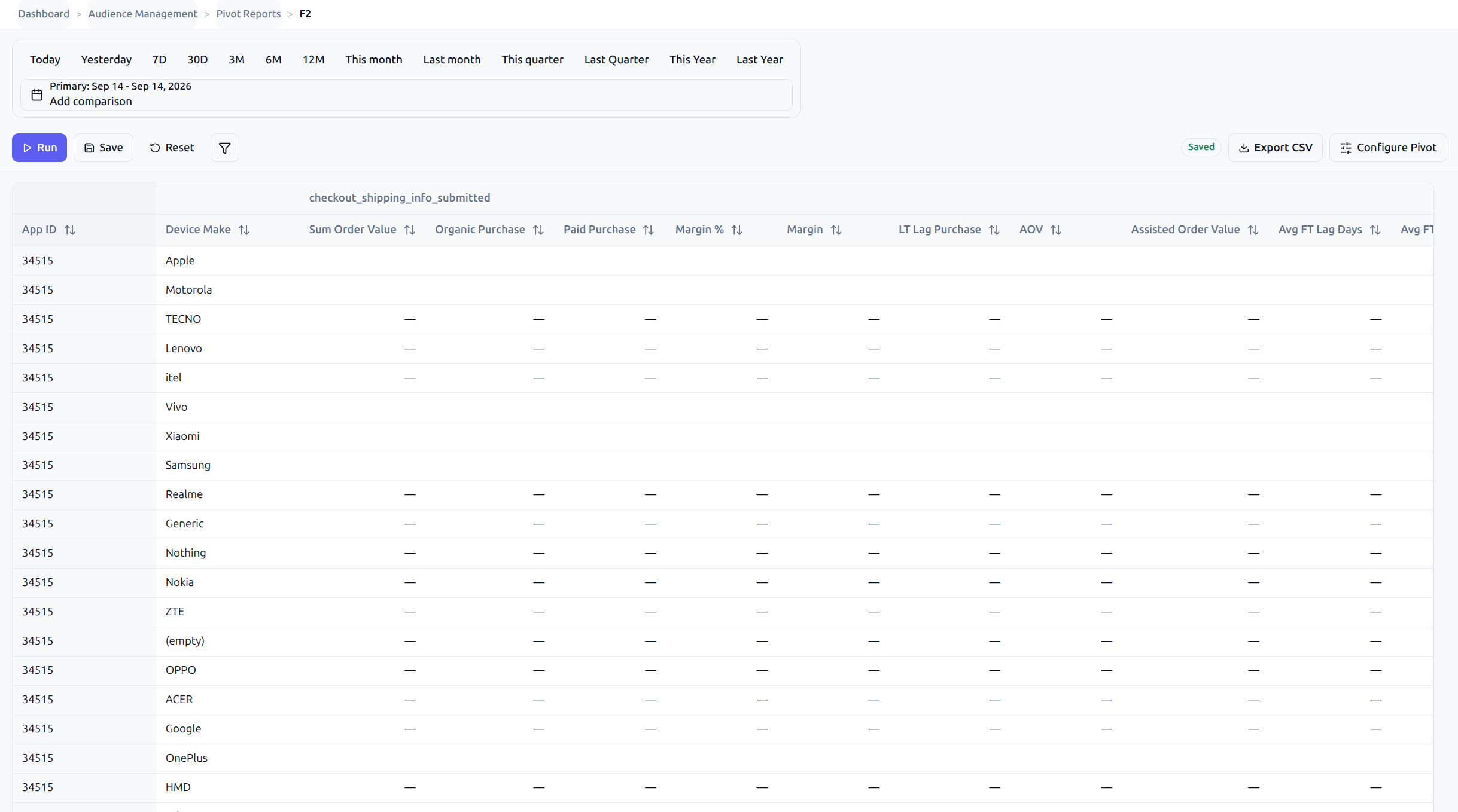
Step 5: Build the Table Layout
The right-hand Fields Panel displays all available attributes categorized as:
- 🟢 Dimensions — Categorical attributes (e.g.,
Channel,Country,Campaign Name,Device OS,Event Date). - 🔵 Measures — Quantitative metrics (e.g.,
Total Events,Gross Revenue,Unique Users,Cost Value).
Assigning Fields to Zones:
You can drag fields or check their boxes to place them into three configuration zones:
- Row Groups: Unique values become hierarchical rows. Adding multiple dimensions creates nested expandable groupings (e.g.,
Country$\rightarrow$City). - Column Labels: Unique values become pivoted columns across the top of the grid (e.g.,
Channelturns into side-by-side columns: Email, SMS, Push, WhatsApp). - Values: Metrics displayed at the intersection of rows and columns. Choose the aggregation function:
SUM,COUNT,AVG,MIN, orMAX.
Step 6: Configure Display Options
Click the Options tab in the inspector panel to toggle presentation formatting:
- Show Row Subtotals: Renders intermediate rollup rows summarizing each parent group.
- Show Column Subtotals: Adds a summary column for each column dimension group.
- Grand Totals: Renders a comprehensive rollup row at the bottom of the table.
Step 7: Run the Report
Click the ▶ Run button in the bottom action bar. The table updates with cross-tabulated metrics.
Step 8: Interactive Analysis & Record Drill-Down
- Column Sorting: Click any column header once to sort ascending, twice for descending.
- Pagination: Adjust page sizes (
50,100,250, or500rows per page). - Cell Drill-Down: Click on any numeric value cell in the grid. A slide-over panel opens revealing the individual customer and transaction records that aggregate into that specific cell value.
- Export: Click the Export CSV button to download the report as a formatted spreadsheet.
4. Edge Cases, Limits & Cardinality Quarantine
Because pivot tables compute cross-products across all assigned dimensions, unconstrained configurations can overwhelm memory and crash browser rendering.
4.1 Understanding Cardinality Quarantine States
| Banner State | Condition | Impact | Recommended Action |
|---|---|---|---|
| 🟢 Safe | Cells ≤ 100,000 | Report executes smoothly. | Normal operation. |
| 🟡 Warning Banner | 100,001 to 250,000 cells | Execution permitted, but grid interactions may experience slight latency. | Consider adding an attribute filter (e.g. limiting to top 5 countries). |
| 🔴 Blocked Banner | Cells > 250,000 | Execution Blocked. Server returns HTTP 422 QUARANTINE_CARDINALITY_EXCEEDED. | Remove high-cardinality dimensions or apply strict filters before re-running. |
4.2 How to Resolve a Cardinality Quarantine Block
- Remove Unique Identifier Dimensions: Never place high-cardinality keys like
dmd_uid,session_id,pub_click_id, oripinto Row Groups or Column Labels. Use aggregate dimensions instead. - Move Dimensions from Columns to Rows: Columns consume significantly more browser rendering bandwidth than rows because rows are virtualized and paginated.
- Apply Selective Filters: Filter the dimensions to a specific subset of values (e.g.,
Channel IN (Email, SMS)instead of all channels). - Shorten the Date Range: Reduce the timeframe from
12Mto30Dor7D.
5. Enterprise Best Practices & Troubleshooting
Troubleshooting Matrix
| Symptom | Probable Cause | Resolution |
|---|---|---|
| Red Quarantine Banner appears on Run | Cartesian combination of rows and columns exceeds 250,000 cells. | Review the Cardinality Quarantine resolution steps above; remove high-cardinality fields from Column Labels. |
| Numeric cells show 0 or blank | The selected measure does not exist in the filtered event types (e.g., measuring order_value on page_view events). | Ensure the measure field aligns with the event types included in your data model or filter. |
| Drill-down modal shows "No records found" | Underlying records have expired from hot analytical storage according to retention policies. | Inspect historical cold storage logs or shorten the query date range. |
| Report loses modifications upon reload | Auto-save was interrupted due to network disconnection. | Check network connectivity; click the manual Save button to confirm persistence. |
Best Practices Checklist
- Rows for Hierarchy, Columns for Comparison: Use Row Groups for deep taxonomic grouping (
Country$\rightarrow$State$\rightarrow$City), and reserve Column Labels for low-cardinality comparison buckets (Channel,Device Type). - Filter First: Apply geographic or channel filters before dragging dimensions to keep query latencies sub-second.
- Verify with Drill-Down: Before presenting reports to executives, click into key revenue cells to audit that underlying transactions match expected order IDs.
6. Related Resources & Deep Links
- Engine Foundations: Learn how ClickHouse processes rollups in the Reporting Engine Architecture.
- API Contracts: Programmatic query payload specifications in Reporting Suite API Contracts.
- Sequential Conversion: Step drop-offs and journey analysis in Funnel Report Guide.
- Attribution Workbenches: Multi-channel spend and ROAS analysis in Target Attribution Stats.
- Terminology: Full metric definitions in the KPI Glossary.